 XP Spendly
Amount, category, done
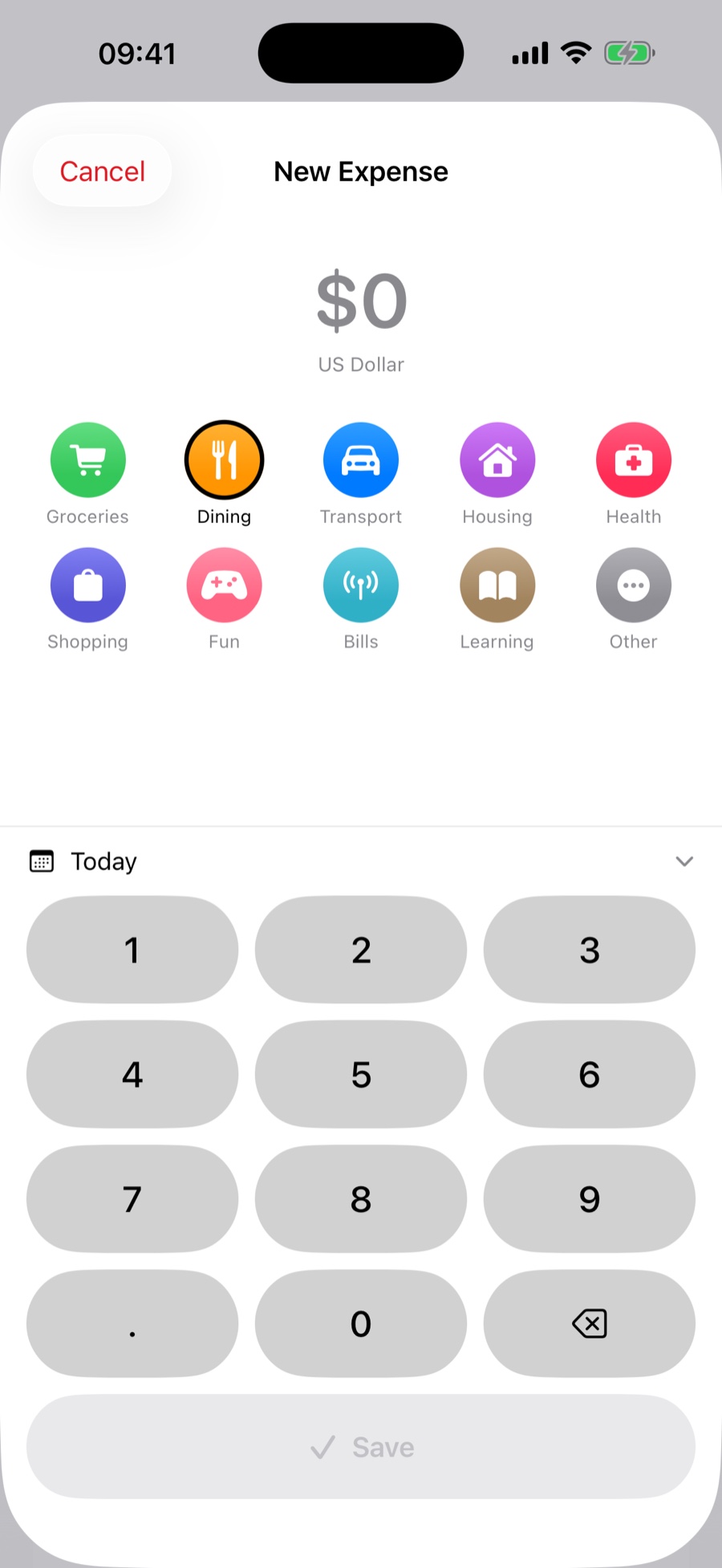
Three taps and a Save. There is no form to scroll, no required note, no confirmation dialog. Save is disabled until an amount and a category are actually there, so you cannot record an empty entry by accident.
iPhone · iOS 17+ · Free
XP Spendly is an expense tracker with nothing in the way. Log what you spent in a couple of taps, see what is left of your budget, and get an honest picture of your month — without an account, without ads, and without a single byte leaving your iPhone.
No sign-up · No subscriptions · No ads · Works offline
Most budgeting apps want your bank login, your email address and $9.99 a month before they will tell you how much you spent on coffee. XP Spendly asks for none of it.
You type the amount, tap a category, and you are done — the whole interaction is built to take a few seconds while you are still standing at the counter. Everything after that is arithmetic the app does for you: what is left this month, what you can spend per day to stay on track, where the money is going, and whether this month is worse than the last one.
No server holds your records. They live in a single file inside the app on your iPhone, and the app contains no code that uploads them anywhere. That is not a promise on a marketing page — it is how the thing is built.
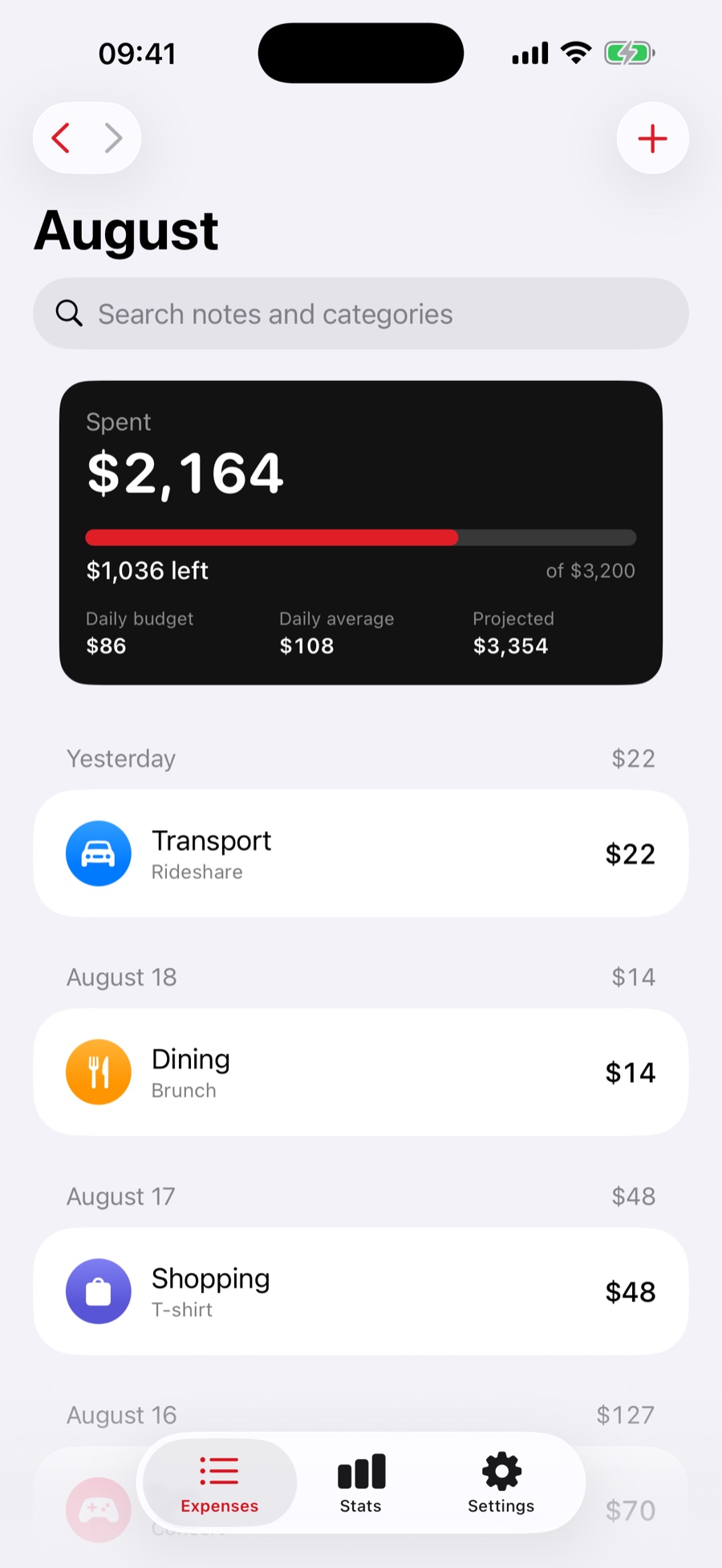
The screen you will open most often, so it is the one with the fewest steps.
1,234.56, 1234.5 or 1.234,56 — the app works out which mark is the decimal one and ignores stray currency symbols and spaces. Amounts are stored as exact decimals, not floating point, so totals never drift by a cent.One black card at the top of the home screen that answers “am I fine?” before you read anything else.
Your month, newest first, grouped the way you remember it — by day.
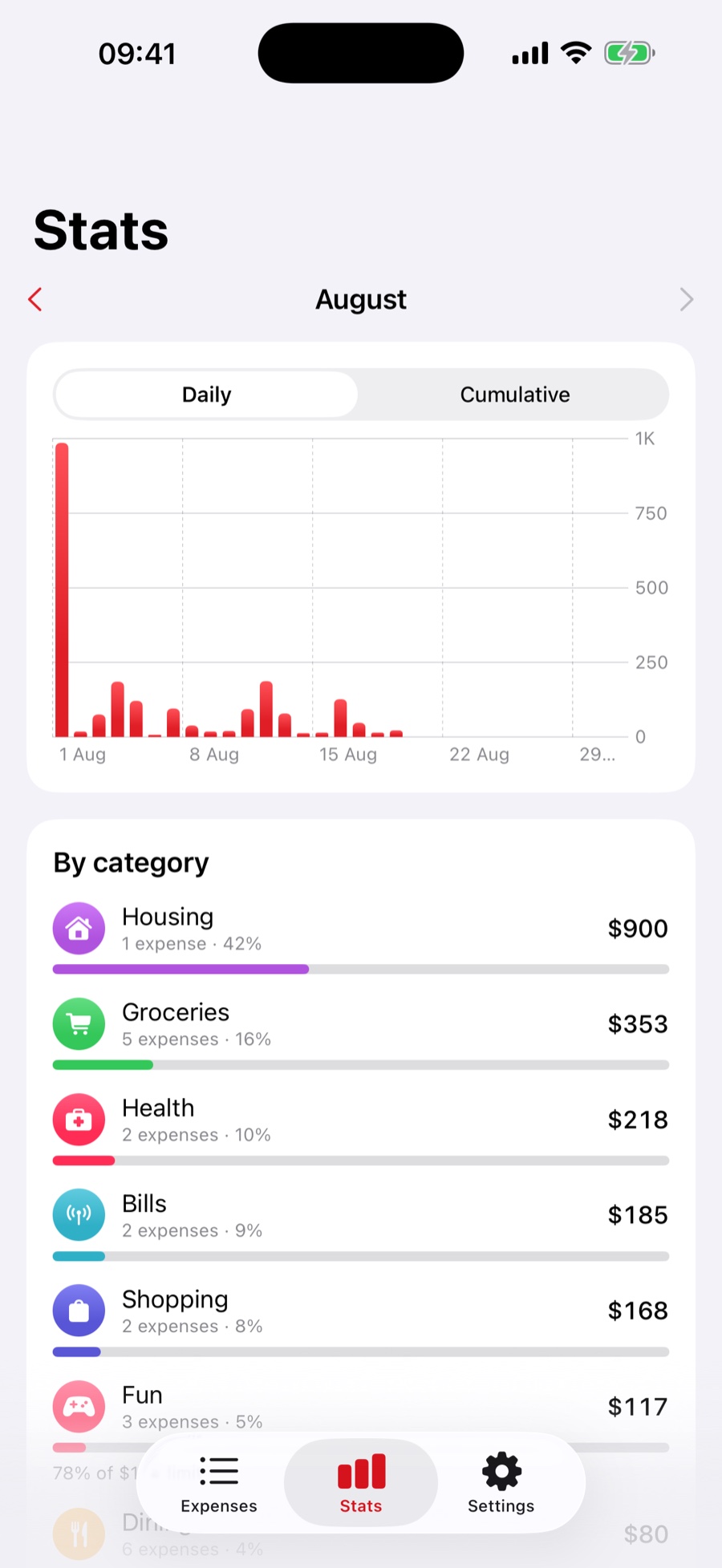
Two charts and two lists — chosen because each one answers a question you would otherwise ask out loud.
1K, 750, and the date axis ticks every seven days.Ten sensible ones out of the box, and complete freedom to replace them.
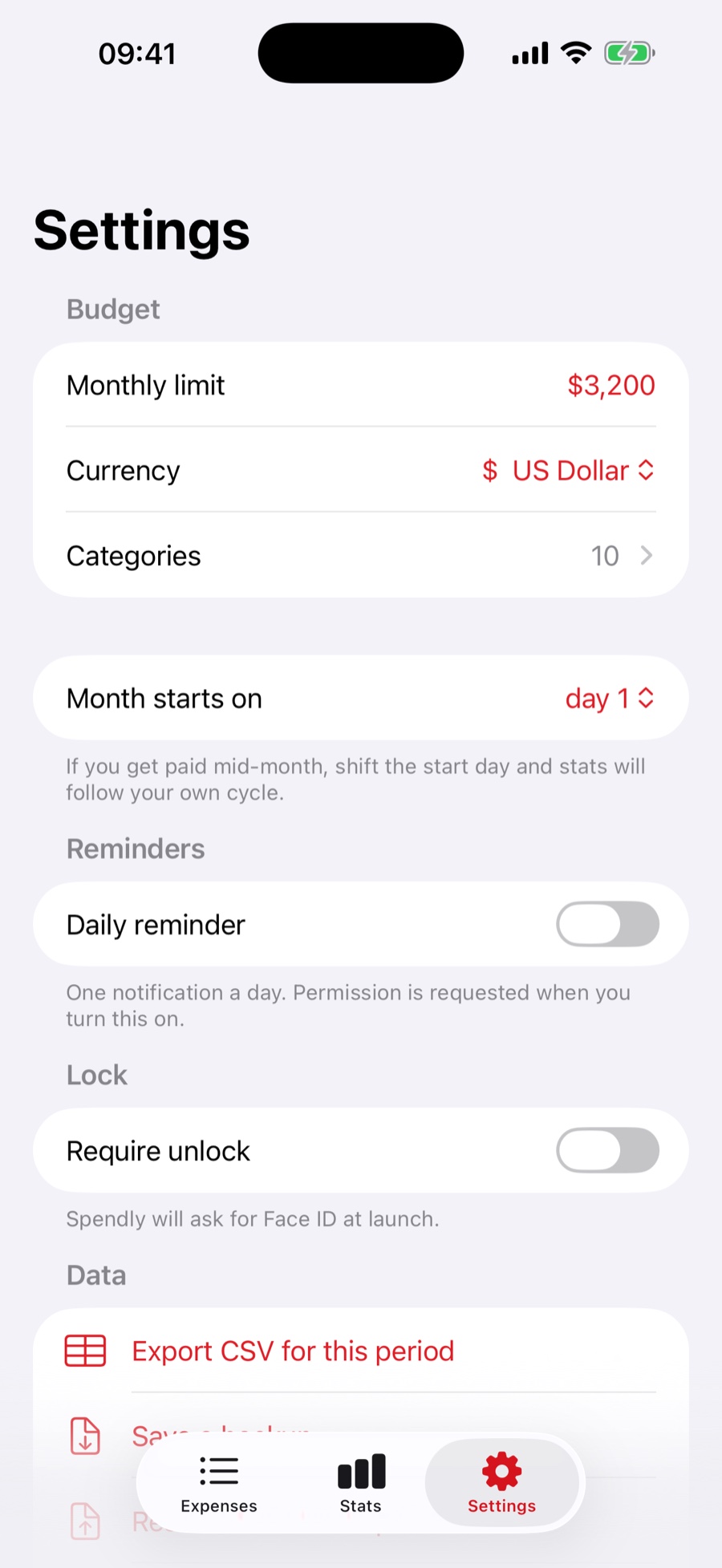
Salaries rarely arrive on the 1st. The app does not insist that they do.
Two optional switches. The app never asks for a permission you have not turned on yourself.
A tracker you cannot leave is a trap. This one hands you the whole file.
No in-app purchases, no premium tier, no advertising, no “unlock statistics for $4.99”. Every feature on this page is available the first time you open the app.
No account, no email, no onboarding questionnaire. The app opens straight onto the home screen with ten categories already set up and your currency picked from your region.
Tap the budget card, type a number. From that moment the app tracks the balance, works out what you can spend per day, and projects where the month is heading.
Amount, category, Save. After a week the charts have something to say; after a month, the comparison against the previous one does too.
| Platform | iPhone, iOS 17 or later |
|---|---|
| Price | Free — no in-app purchases, no subscriptions, no advertising |
| Account | None. Nothing to sign up for and nothing to sign in to |
| Network | Fully functional offline. Your expenses are never transmitted |
| Interface language | English |
| Currencies | USD, EUR, GBP, CAD, AUD, JPY, CHF, CNY, INR, MXN, BRL, RUB |
| Appearance | Light and dark, following your iPhone |
| Accounting cycle | Calendar month, or any start day from 1 to 28 |
| Export | CSV (per period) and a complete JSON backup |
| Security | Optional Face ID / Touch ID lock with passcode fallback |
| Notifications | Optional — one local daily reminder at a time you choose |
| Built with | SwiftUI and Swift 6, no third-party analytics or advertising SDKs |
| Age rating | 4+ |
| Category | Finance |
No. There is no sign-up, no email, no password and no “continue with” button. You open the app and it works. Because there is no account, there is also nothing to be locked out of and nothing to be breached.
No, and that is deliberate. Bank connections require handing your credentials to a third-party aggregator, and they turn a personal ledger into a data pipeline. XP Spendly is manual entry only — which is also why logging is built to take a couple of seconds.
In a single file inside the app on your iPhone. Not in the cloud, not on a developer’s server, not in an analytics pipeline. The app has no code that uploads your expenses anywhere.
It is free, with no in-app purchases, no subscription and no advertising. There is no premium tier holding statistics or export hostage. The catch, if you want to call it one, is that there is no bank sync and no multi-device cloud — the things that would require a server are simply not there.
Two ways. Your records are part of your normal iCloud or computer backup, so restoring the new phone from that backup brings them along. Or, in Settings, use Save a backup, move the file across however you like, and use Restore from backup on the new device.
Yes — Export CSV for this period in Settings produces a file with the date, category, amount, currency and note of every expense in the period, which Excel, Numbers and Google Sheets all open directly. The JSON backup contains everything, including categories and settings.
It gets archived rather than destroyed. It stops appearing when you log a new expense, but every past month keeps its full breakdown and the totals still add up. You can restore it at any time from the Archived section.
Yes. Set Month starts on to any day from 1 to 28 and the entire app follows your cycle — balance, daily budget, charts, category shares, the comparison with the previous period and the CSV export.
Not in this version. The ledger uses one currency at a time, and switching currency changes how existing amounts are displayed rather than converting them. If multi-currency matters to you, say so — it is the kind of thing that gets built when enough people ask.
Entirely. Logging, budgeting, statistics, export and backup all work in airplane mode, because none of them need a network in the first place.
In some countries the app can open the web interface of the service instead of its built-in screens. When that is available, a switch appears in Settings → Web version so you can turn it on or off yourself, and the web screen always has a button back to the app. Your expenses stay on your device either way.
Write to bluoliud@mobry-network.cyou, or leave a review on the App Store. Both are read.
Free on the App Store
Set a limit, log a week of spending, and look at the chart. Most people are surprised by exactly one category — and that is the whole point.
iPhone · iOS 17+ · No account · No ads · No subscriptions
In one line: XP Spendly does not collect your financial data. It stays on your device.
The amounts you enter, the categories you assign and the notes you write are stored in a single file inside the app on your iPhone. They are never transmitted, and the developer has no technical means of seeing them. There is no account, so there is no profile to build.
The app contains no advertising networks, no behavioural analytics and no cross-app trackers. The one third-party service it uses is Firebase Remote Config, which decides which version of the interface to present in your country and never receives any financial data.
Your records leave the device only when you ask them to — by exporting a CSV file or saving a backup, to a destination you choose.
In one line: The app is free, provided as is, and is a record-keeping tool — not financial advice.
These Terms of Use (“Terms”) are an agreement between you and Mobry Network Technology, S.A. de C.V. (“we”, “the developer”) governing your use of the XP Spendly — Expense Tracker iPhone application (“the app”) and this website. By downloading, installing or using the app you accept these Terms. If you do not accept them, do not use the app.
We grant you a personal, limited, non-exclusive, non-transferable and revocable licence to use the app on Apple-branded devices that you own or control, in accordance with the App Store Terms of Service and Apple’s Licensed Application End User Licence Agreement. Everything not expressly granted here is reserved.
The app is provided free of charge. It contains no in-app purchases, no subscriptions and no advertising. We may introduce paid features in future versions; if we do, the features described on this page at the time you installed the app will not be moved behind a payment.
XP Spendly is a personal record-keeping tool. It records what you tell it and performs arithmetic on those records.
It is not financial, investment, tax, accounting or legal advice, and it is not a substitute for professional guidance. Budgets, daily allowances, projections and comparisons are simple calculations based solely on the figures you have entered; they carry no assessment of your circumstances. Decisions you make with them are yours.
The app is not a bank, a payment service, an accounting system of record, or a tax-reporting tool. It does not connect to financial institutions and it cannot verify anything you enter.
The app uses Firebase Remote Config (Google LLC) to determine which version of the interface to present in your country, as described in the Privacy Policy. Distribution and payment processing are handled by Apple. Those services are governed by their own terms, and we are not responsible for their availability or conduct.
In some countries the app may present the web interface of our service instead of its built-in screens. That web interface is governed by its own terms and privacy policy. You can switch back to the built-in app at any time in Settings → Web version.
The app, its source code, design, icon, name and all related materials remain the property of the developer and are protected by copyright and other laws. These Terms transfer no ownership.
Your records are yours. We claim no rights whatsoever in the expenses, categories, notes or other content you create in the app.
We may update, change or discontinue the app or any of its features at any time. We may also update these Terms; the current version will always be published on this page with its effective date. Continuing to use the app after a change means you accept the updated Terms. Compatibility with future versions of iOS or future devices is not guaranteed.
The app is provided “as is” and “as available”, without warranties of any kind, whether express, implied or statutory, including any implied warranties of merchantability, fitness for a particular purpose, accuracy and non-infringement. We do not warrant that the app will be uninterrupted, error-free, or that any defect will be corrected. Some jurisdictions do not allow the exclusion of certain warranties, so parts of this section may not apply to you.
To the fullest extent permitted by law, the developer shall not be liable for any indirect, incidental, special, consequential or punitive damages, or for any loss of data, profits, revenue or savings, arising out of or in connection with your use of, or inability to use, the app — including any financial decision made in reliance on figures it displayed. Because the app is provided free of charge, the developer’s total aggregate liability shall not exceed the amount you paid for it. Nothing in these Terms excludes liability that cannot lawfully be excluded, including liability for fraud, or for death or personal injury caused by negligence.
You may end this agreement at any time by deleting the app from your device. We may terminate the licence if you materially breach these Terms. Sections 9 through 12 survive termination.
These Terms are between you and the developer, not with Apple. Apple has no obligation to provide any maintenance or support for the app and is not responsible for addressing any claim relating to it, including product-liability claims, claims of non-conformity with any legal requirement, or claims under consumer-protection legislation. Apple and its subsidiaries are third-party beneficiaries of these Terms and may enforce them against you.
These Terms are governed by and construed in accordance with the laws of the United Mexican States. For the interpretation, performance and enforcement of these Terms, both parties expressly submit to the jurisdiction of the competent courts of Mexico City, waiving any other jurisdiction that may correspond to them by reason of their present or future domicile.
This does not deprive you of the protection afforded by the mandatory consumer-protection rules of the country in which you reside. Where such a rule conflicts with a provision of these Terms, that rule prevails and the remaining provisions stay in force.
If any provision of these Terms is found unenforceable, it will be limited or removed to the minimum extent necessary and the rest will remain in effect. Together with the Privacy Policy, these Terms constitute the entire agreement between you and the developer regarding the app.
Questions about these Terms: bluoliud@mobry-network.cyou.